
Your Threat Hunters Are Spending Their Day Reading Blogs. Here’s How to Fix That.
Mar 5, 2026
By Yury Sergeev and Juanita Koschier, RST Cloud
Picture your best threat hunter. They came up through incident response, they think like an adversary, and they know your environment better than anyone. Now picture what they actually spent the first two hours of their day doing: reading threat reports, skimming vendor blogs, manually checking whether any of it is relevant to your organisation, and writing up a hunt query that may or may not reflect intelligence published three days ago.
That is not a talent problem. It is a workflow problem, and it is costing the industry far more than the $300,000-plus annual price tag of a two-person hunting team.
The Volume Problem Nobody Wants to Say Out Loud
There are roughly 398 threat research articles published every day. Of those, maybe nine are actually huntable, meaning they contain actionable intelligence specific enough to form a detection hypothesis. The rest are vendor commentary, rehashed advisories, and general awareness pieces that inform the background picture but don’t move the needle on active hunting.
The uncomfortable truth is that no analyst can read 398 articles a day. So, teams make informal decisions about which sources to follow, which vendors to trust, and which threats to prioritise. Without clearly defined Priority Intelligence Requirements (PIRs) (a written, agreed-upon answer to the question “what does this organisation actually need to know?”), those informal decisions become the de facto intelligence strategy. Teams chase everything and, in doing so, defend nothing particularly well.
This is the environment adversaries are operating in. Breakout times have dropped to as low as 30 minutes in some intrusions. Some defenders are still running one hunt per week. The maths does not work.
Adding People Isn’t the Answer
The instinct when a process is overwhelmed is to hire. It feels productive. It is also, in this case, largely ineffective.
More hunters mean more coordination overhead: onboarding time, competing interpretations of the same intelligence, and parallel work that creates gaps rather than closing them. The problem is not that there aren’t enough humans in the room. The problem is that humans are being asked to do work that does not require human judgement, and that work is consuming the hours that should be spent on the sophisticated analysis that only humans can do.
The supporting processes of threat hunting (ingesting reports, extracting indicators, checking relevance against your environment, building the initial query) can be automated. This article walks through exactly how to do that in Elastic, step by step.
The Architecture
Before We Get into Steps
Before diving in, it helps to have a clear picture of what we’re building and the three paths available to get there.
Path 1 (DIY): You build your own ingestion pipeline, parse reports into a structured format, store them in an Elastic index, and wire everything together with scripting. More build time upfront, but entirely achievable with Elastic and some Python.
Path 2 (Assisted): You use a purpose-built tool like RST Report Hub to handle ingestion and parsing automatically, with output that drops directly into your Elastic index in the right structure. The steps are the same; you’re just skipping the pipeline build.
Path 3 (AI-Assisted): You use the Elastic AI Assistant directly, with reports fed into the Knowledge Base and queries handled through the assistant interface. This path requires the least manual scripting but does need an Elastic Enterprise licence to get the full benefit of System Prompts and Knowledge Base integration.
Whichever path you take, the destination is identical: a structured, queryable index of threat intelligence that your Elastic AI Assistant and scheduled hunt jobs can act on automatically.

Step 1: Build Your Structured Threat Report Index
Everything depends on getting your CTI data into a consistent, queryable structure. An Elastic index with semantic_text fields is the foundation, enabling both traditional keyword queries and the semantic search that powers the AI Assistant’s knowledge retrieval.
Every report that enters the index should conform to the same schema. Here is what a well-structured record looks like:
{
"content": "## Full report text ...",
"report_id": "20250117_microsoft_com_report_0x32e6ff7e",
"report_title": "New Star Blizzard spear-phishing campaign ...",
"report_source": "www.microsoft.com",
"report_published_date": "2025-01-17",
"report_url": "https://www.microsoft.com/.../blog/2025/01/16/...",
"report_categories": ["phishing", "malware", "scan", "c2"],
"report_threats": ["seaborgium_group", "spear-phishing_technique"],
"report_mitre_attack_ids": ["T1566.002"],
"report_industry": ["government", "ngo"],
"report_geo": ["Russian", "Russia", "Ukraine"],
"report_idea": "The main idea of the text is that...",
"report_facts": "Russian threat actor Star Blizzard shifted tactics...",
"report_iocs_domain": ["civilstructgeo.org", "aerofluidthermo.org"],
"report_observables_domain": ["t.ly"]
}
The fields that matter most for automated hunting are report_categories, report_threats, report_industry, report_geo, and report_mitre_attack_ids. These are what your scheduled jobs will query against. The content field along with report_idea and report_facts summaries are what the AI Assistant will use when retrieving relevant context.
If you are building this yourself, you will need a pipeline that fetches reports from your chosen sources, extracts and normalises the fields above, and writes them to the index. The parsing work (identifying threat actors, tagging MITRE IDs, extracting indicators) is the most time-consuming part of the build.
If you are using RST Report Hub, this is what the tool handles end to end. It monitors over 480 sources, parses each report into this structure automatically, and makes the output available for indexing without manual processing. The result is that reports published overnight are in your index before your analysts arrive in the morning.
Step 2: Connect Your Index to the Elastic AI Assistant Knowledge Base
Once your index is populated, you want the Elastic AI Assistant to be able to query it as a knowledge source. This is done through the Knowledge Base configuration.
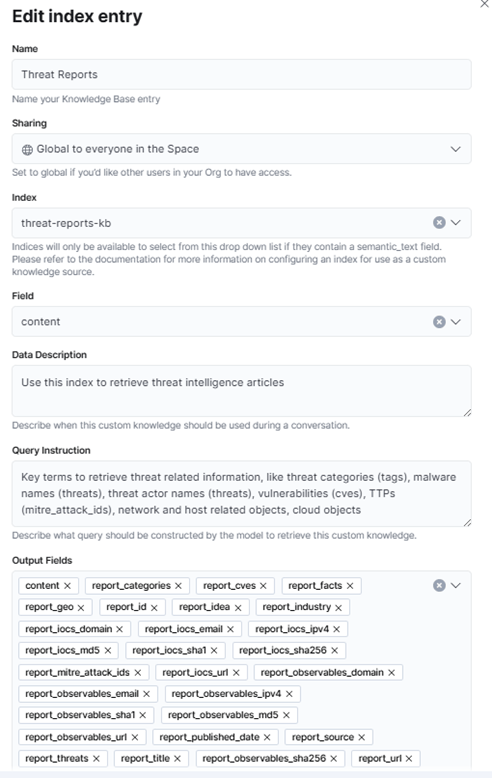
Navigate to the AI Assistant settings and create a new Knowledge Base entry. You will need to:
- Create a new index named threat-report-kb with a semantic_text field. This is what enables the assistant to retrieve semantically relevant content rather than relying on keyword matches alone.
- Create a new Knowledge Base entry titled something like “Threat Reports.”
- Set a clear Data Description, which tells the assistant what kind of content it is querying. Something like: “Parsed threat intelligence reports including indicators of compromise, threat actor profiles, MITRE ATT&CK technique mappings, and affected industries and geographies.”
- Set a clear Query Instruction, which tells the assistant how to use the dataset. For example: “Use this knowledge base to retrieve relevant threat intelligence when asked about threat actors, malware families, attack techniques, indicators of compromise, or sector-specific threats.”
These two fields are easy to overlook, but they significantly affect the quality of what the assistant retrieves. Vague instructions produce vague results.
A note on ELSER-2: For semantic search to work, your cluster needs a node with the ML role enabled running the ELSER-2 model. This requires approximately 2 GB of memory allocated to the ML node. If your cluster is not currently configured this way, sort this out before moving on, as Knowledge Base retrieval will not function without it.
As of February 2026, the default Knowledge Base ships with 191 articles from Elastic Labs, which is a solid starting point. With a live ingestion pipeline running, you should expect approximately 50 genuinely huntable articles per week entering your index on top of that baseline.
Step 3: Codify Your Priority Intelligence Requirements
Automated ingestion without PIRs is like having a well-stocked library with no catalogue. The system has the information; it just doesn’t know what you care about.
PIRs don’t need to be a formal programme. Start with ten questions that reflect your real exposure: which threat actors target your sector, which geographies your operations touch, which malware families affect your technology stack, what a breach of your most sensitive system would look like in network traffic terms.
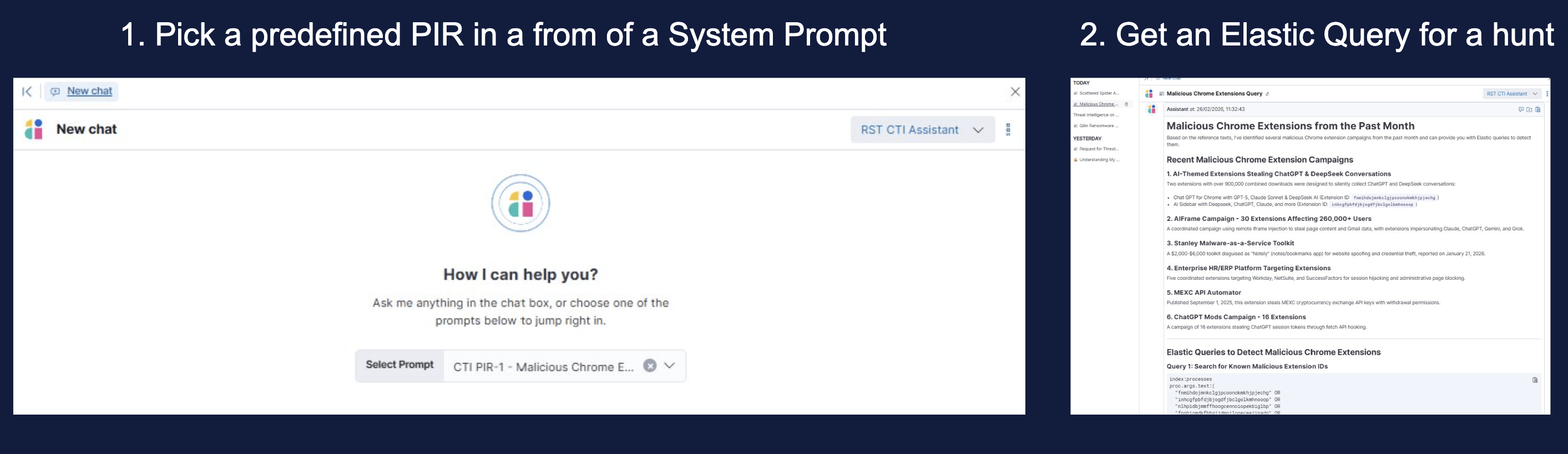
For Elastic Enterprise users, PIRs can be stored directly as System Prompts in the AI Assistant. This means every query the assistant handles, and every automated hunt it informs, is filtered through the lens of what your organisation has decided matters. It is the most seamless integration point available.
For other licence tiers, maintain your PIRs in a Git repository alongside your detection rules. Query them regularly using RST CTI Assistant and pass the relevant results into Elastic. The integration is slightly more manual, but the outcome is the same: your hunts are scoped to what is relevant, not to everything published this week.
Step 4: Build Your Scheduled Hunt Jobs
This is where the automation becomes tangible. With a structured index in place and PIRs defined, you can build scheduled search jobs that run against your report index and trigger hunts automatically.
The query logic maps directly to your index fields. Some practical examples:
- stealer in report_categories surfaces any report from the past quarter mentioning information stealers
- finance in report_industry catches everything targeting financial sector organisations
- plugx in report_threat triggers when PlugX infrastructure is documented anywhere in your source pool
- cobalt_strike_tool in report_threat fires when Cobalt Strike activity is reported
A few operational recommendations that make a real difference in practice:
Schedule jobs during off-peak hours. 3 AM is the conventional choice, keeping the load off the cluster during business hours and ensuring results are ready for review when analysts start their day.
Scan historical data. Configure jobs to look back across a rolling window; 90 days is a reasonable default. New intelligence often recontextualises older activity, and a fresh report about a threat actor may make a three-month-old observable suddenly worth hunting.
Consolidate results into a single ticket. Rather than generating one alert per matching report, aggregate all findings from a scheduled run into one ticket and auto-assign it to a hunter only when actionable results are found. This prevents alert fatigue and ensures the analyst who picks it up has full context rather than a fragment.
Step 5: Query the Knowledge Base Through the AI Assistant
With the index connected and the assistant configured, the query workflow is straightforward. There is, however, one important detail that determines whether the assistant uses your knowledge base or falls back to its general training data.
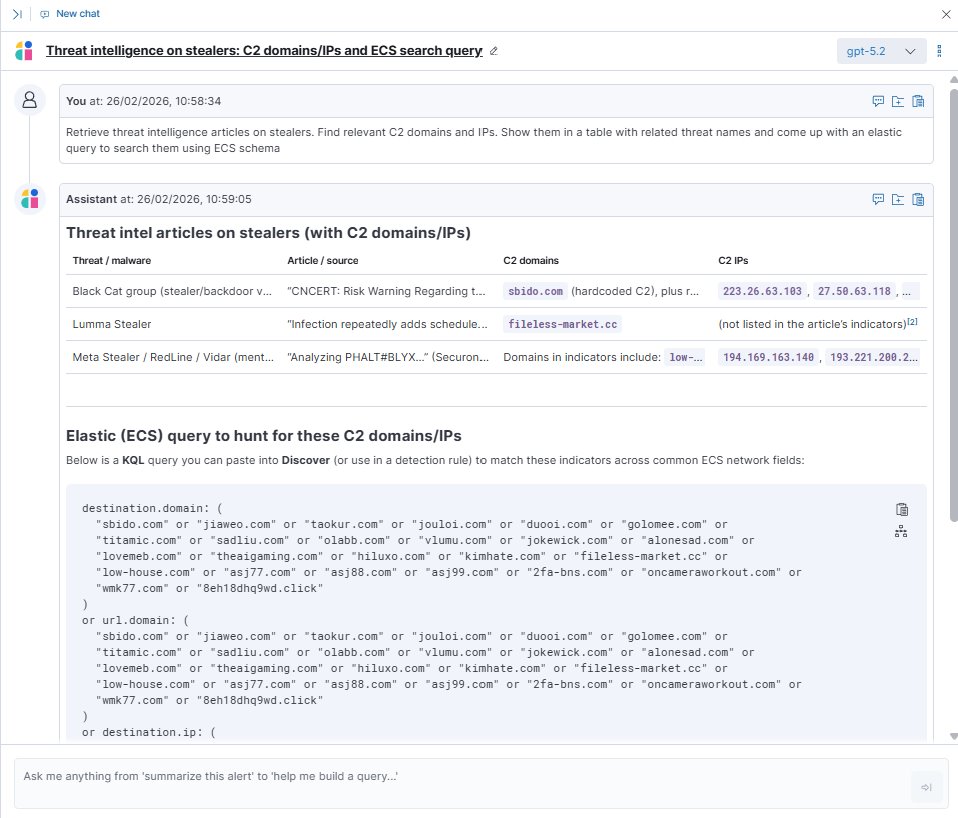
Always prefix your queries with “Retrieve.”
Starting a query with “Retrieve” explicitly instructs the Elastic AI Assistant to invoke the KnowledgeBaseRetrievalTool rather than generating a response from context alone. Without this, the assistant may answer from its training data rather than from your live intelligence index.
A well-formed query looks like this:
“Retrieve recent reports on credential access techniques targeting financial sector organisations in Asia-Pacific.”
The assistant queries the knowledge base, surfaces the relevant parsed reports, and can generate a KQL hunt query based on what it finds, ready to run against your Elastic environment.
Use a capable model for this. The quality of retrieval and synthesis varies significantly between models. When working with structured intelligence data, use the best model available to you through your connector configuration.
Going Further: Connecting an External CTI Agent
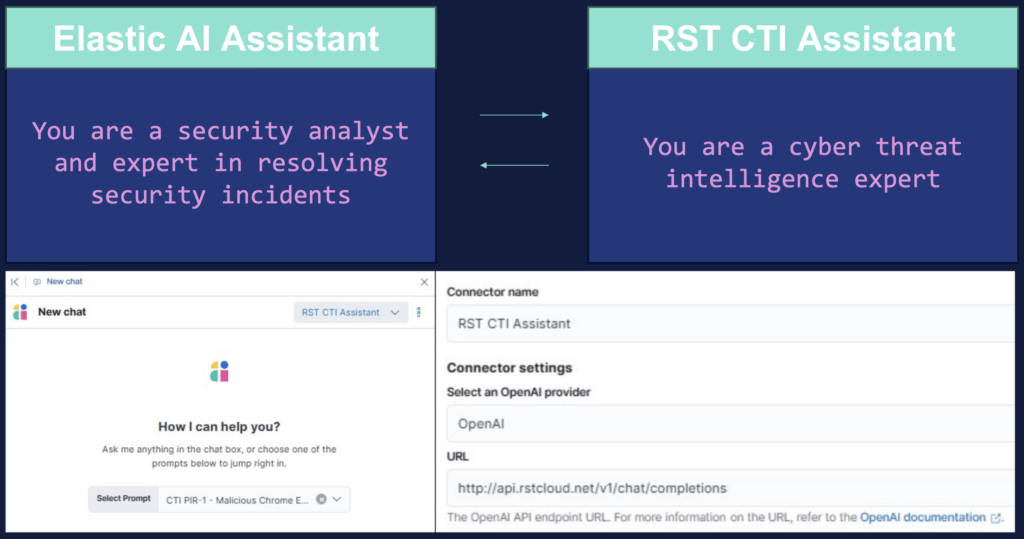
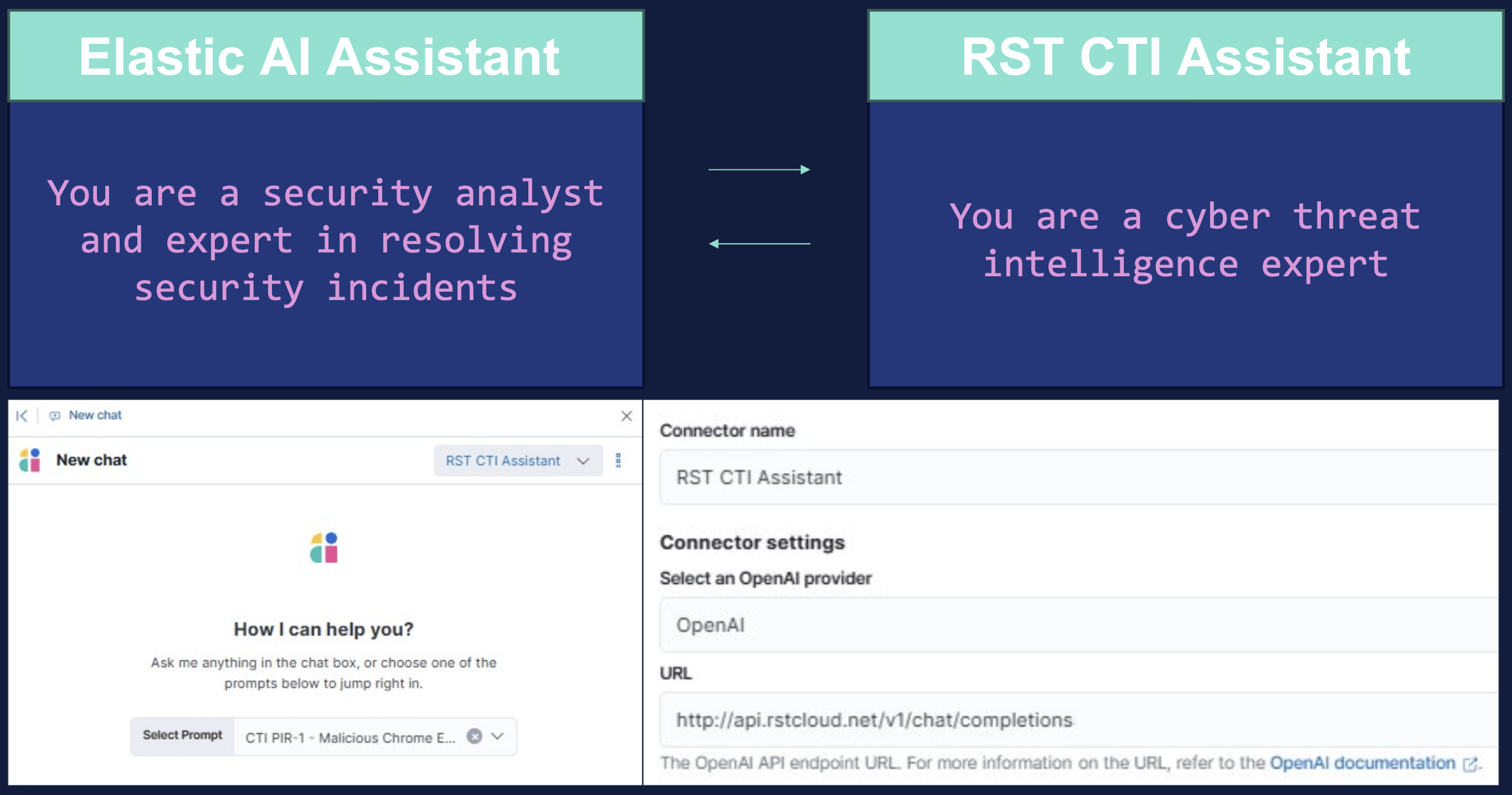
For teams that want to push this further, the Elastic AI Assistant supports connecting to external agents via an OpenAI-compatible API endpoint. This enables an “agent to agent” model where Elastic handles the security operations context and a dedicated CTI agent handles the intelligence research, communicating directly rather than requiring an analyst to shuttle information between tools.
In practice, RST CTI Assistant can be registered as a connector in Elastic using the OpenAI provider option and pointing to RST’s API endpoint. Once connected, the Elastic AI Assistant can delegate CTI-specific queries to RST CTI Assistant in real time, drawing on its underlying RAG system populated with parsed reports.
The configuration in Elastic is straightforward: add a new connector, select the OpenAI provider, enter the endpoint URL, and the two assistants can begin communicating. The analyst’s experience is a single interface; the intelligence sourcing happens behind the scenes.
What Your Hunters Do with the Time They Get Back
The goal of all of this is not a fully automated SOC. It is a SOC where human expertise is applied to problems that actually require it.
When ingestion, parsing, relevance filtering, and initial query generation are automated, a threat hunter’s morning looks different. Instead of two hours with a browser open across fifteen vendor blogs, they open a ticket with pre-structured, pre-tagged intelligence that has already been checked against the organisation’s PIRs. The hunt has been scoped. The query has been drafted. Their job is to review it, refine it, and decide whether and how to act.
That is a fundamentally different use of a skilled analyst’s time, and it is the kind of workflow that actually scales regardless of how many reports get published tomorrow.
For more information on the topic or to share your ideas – contact us!